Announcements | October 13, 2026 | 4 min read
Send booking details as PDF attachments
Turn a ReservationKey email template into a PDF attachment for booking summaries, invoices, and your bookkeeping workflow.
You can now have ReservationKey turn an email template into a PDF attachment when the message is sent. This is useful for booking summaries, invoices, and other documents you want to keep with your records or send to another system.
The idea came from a practical bookkeeping question: could a PDF containing a reservation’s details be emailed automatically, so it would already be waiting when it was time to do the books?
We added a PDF Attachment option in your email templates to help with this. A manual test from Correspondence delivered the PDF successfully to Gmail. The option is also designed to work with automatic emails, so you can use it as part of your scheduled workflow after testing your setup.
Set up your PDF template
Open the template you want to use in Email Templates. Its main content becomes the PDF, so include the booking details and formatting you want in the attached document. Use your existing reservation merge codes to fill in details for each booking.
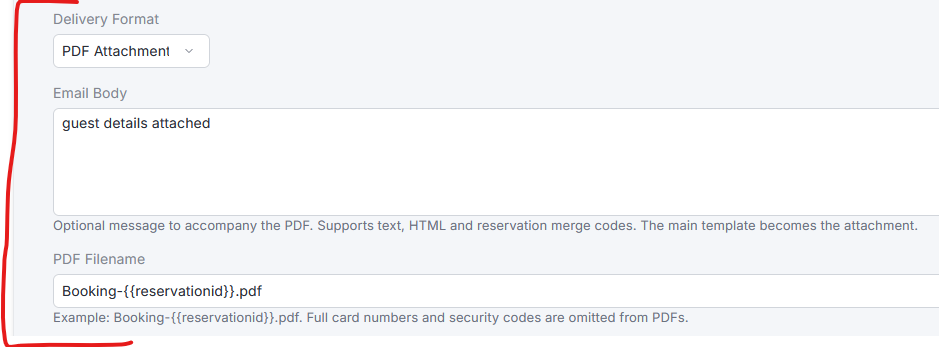
Then open Advanced Options. In Delivery Format, the last option in that section, select PDF Attachment.
Add a message and choose a filename
There are two optional settings for the email and its attachment:
- Email Body is the message that accompanies the PDF. You can leave it blank, add a short note, or include HTML and reservation merge codes.
- PDF Filename controls the name recipients see. The default is Booking-{{reservationid}}.pdf. You can also use existing merge codes to create a name that fits your filing system.
For example, a short email body could say, “The booking details are attached.” The booking summary itself stays in the PDF.
Save the template after choosing your settings.
Try it from Correspondence
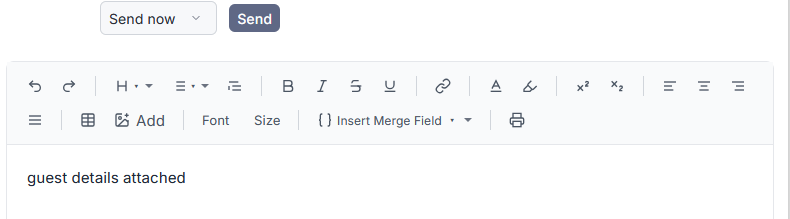
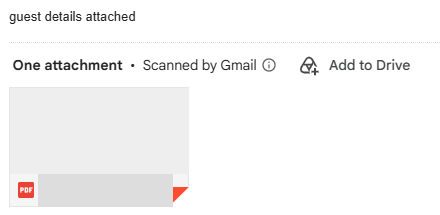
Open Correspondence for a test reservation, choose your template, and send a test to an inbox you control. Check the received email: the message you entered should appear in the body, with your booking document attached as a PDF.
Open the attachment to check the booking details and formatting, and confirm the filename is useful. Use sample booking data while testing.
Add it to your automated workflow
The PDF setting is designed for queued reservation emails and custom-field date schedules as well as manual sending. Before relying on automation, test the schedule you plan to use and confirm that the message arrives with its PDF attached.
Choose the appropriate recipient and timing for your bookkeeping process. Check those settings carefully so the document goes to the intended inbox.
For queued messages, the PDF is created when the message is sent. You do not need to create and attach a separate PDF by hand for each booking.
A useful workflow for Xero
If you use Xero’s email-in workflow for supporting documents, a booking PDF can be sent to the address provided by your Xero account. This can save the manual step of downloading a booking document and attaching it to another email.
Use the PDF as a supporting document in your accounting process. This feature sends an email attachment; it does not connect to the Xero API or automatically reconcile transactions.
If you are using Xero, confirm that the document arrives in the expected place there as well. Successful delivery to an ordinary email inbox is a useful first check; receipt in Xero should be checked separately.
Once the template, destination, and schedule are checked, your booking PDFs can be ready when you need them.