Operations | January 9, 2026 | 5 min read
Members-Only Booking Pages with ReservationKey
Learn how to create a members-only ReservationKey booking page using a simple password overlay. This approach adds lightweight access control without guest accounts or backend changes; ideal for clubs, associations, and private properties that want to prevent casual bookings while keeping the reservation process easy to manage.
In this post, I want to walk through a simple and practical way to add members-only access to a ReservationKey booking page using a lightweight password prompt.
This approach is ideal for associations, clubs, private retreats, or member organizations that want to restrict online reservations to a known audience—without needing full user accounts, logins, or backend authentication.
The Basic Idea
The concept is straightforward:
- A visitor clicks a “Members Reservation Portal” link on your website
- That link opens your ReservationKey booking page
- When the booking page loads, a password-protected overlay appears
- If the correct password is entered, the overlay disappears and the guest can book
- If the password is incorrect, the guest is clearly informed it’s members-only
This is not meant to be bank-level security—but it is very effective at preventing casual or accidental access, which is exactly what many associations need.
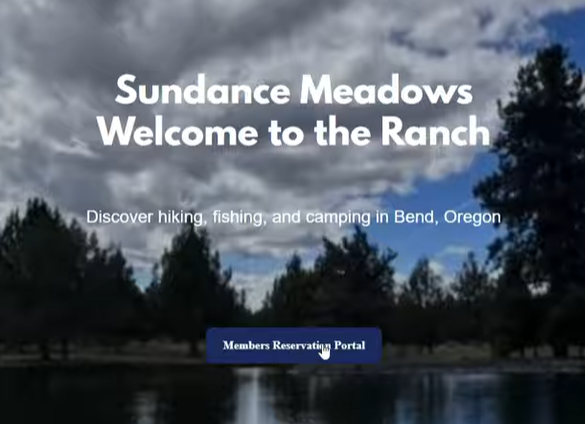
Example: Members Button on Your Website
For the demo, I created a mockup on the property’s website and added a simple button labeled “Members Reservation Portal.”
You could place this link anywhere on your site—navigation, a members page, a footer, or even behind additional content.
When clicked, this button opens the ReservationKey booking page.
Password-Protected Booking Page Experience
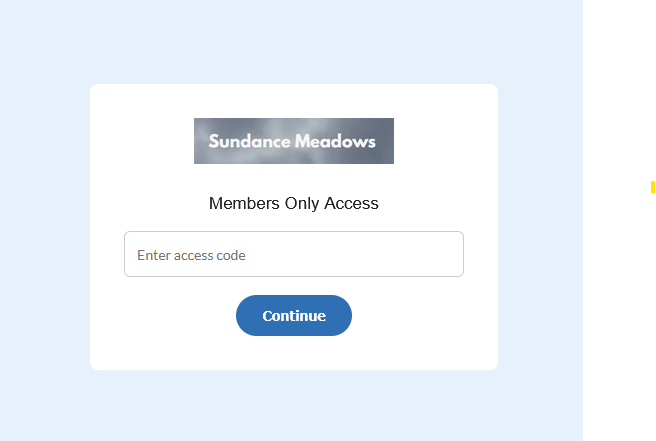
Once the booking page loads, a password overlay appears immediately.
- The overlay includes the property logo
- A password input field
- Clear messaging that the page is members-only
If someone enters the wrong password, they immediately see a message indicating the password is incorrect. This reinforces that the page is restricted.
Once the correct password is entered, the overlay disappears and the booking page is revealed.
Important Note About Security
This approach is intentionally lightweight.
It is not designed to stop a determined attacker—someone could technically view the page source and discover the password. However, in practice:
- Most guests will not do that
- The visual cue alone clearly communicates “members only”
- Many clubs and associations use this exact pattern successfully
The goal is to deter casual misuse, not to implement enterprise-grade authentication.
Booking Flow for Members
Once inside the booking page, everything works exactly like a normal ReservationKey reservation.
Guests can:
- Select dates
- View available units
- Click Reserve
- Enter guest information
If you need additional information from members—such as a membership number or association ID—this is a perfect use case for custom fields.
For example:
- Membership number
- Association name
- Internal reference code
These fields appear directly on the reservation record and can be viewed later by staff.
Payments, Confirmations, and Notifications
In the demo setup:
- Pricing was set to zero (common for member reservations)
- Credit card collection was disabled
However, ReservationKey is flexible:
- You can enable or disable payments
- Send confirmation emails automatically
- Notify a reservation secretary or staff member when a booking is made
- Schedule reminders (for example, 3 days before arrival)
All of this is optional and configurable per property.
Viewing Reservations in ReservationKey
From the admin side, reservations appear normally on the ReservationKey calendar.
You can view:
- Guest details
- Custom fields (such as membership number)
- Notes
- Correspondence history
Everything stays centralized in one place.
How the Password Protection Is Set Up
The password protection itself is handled entirely with JavaScript.
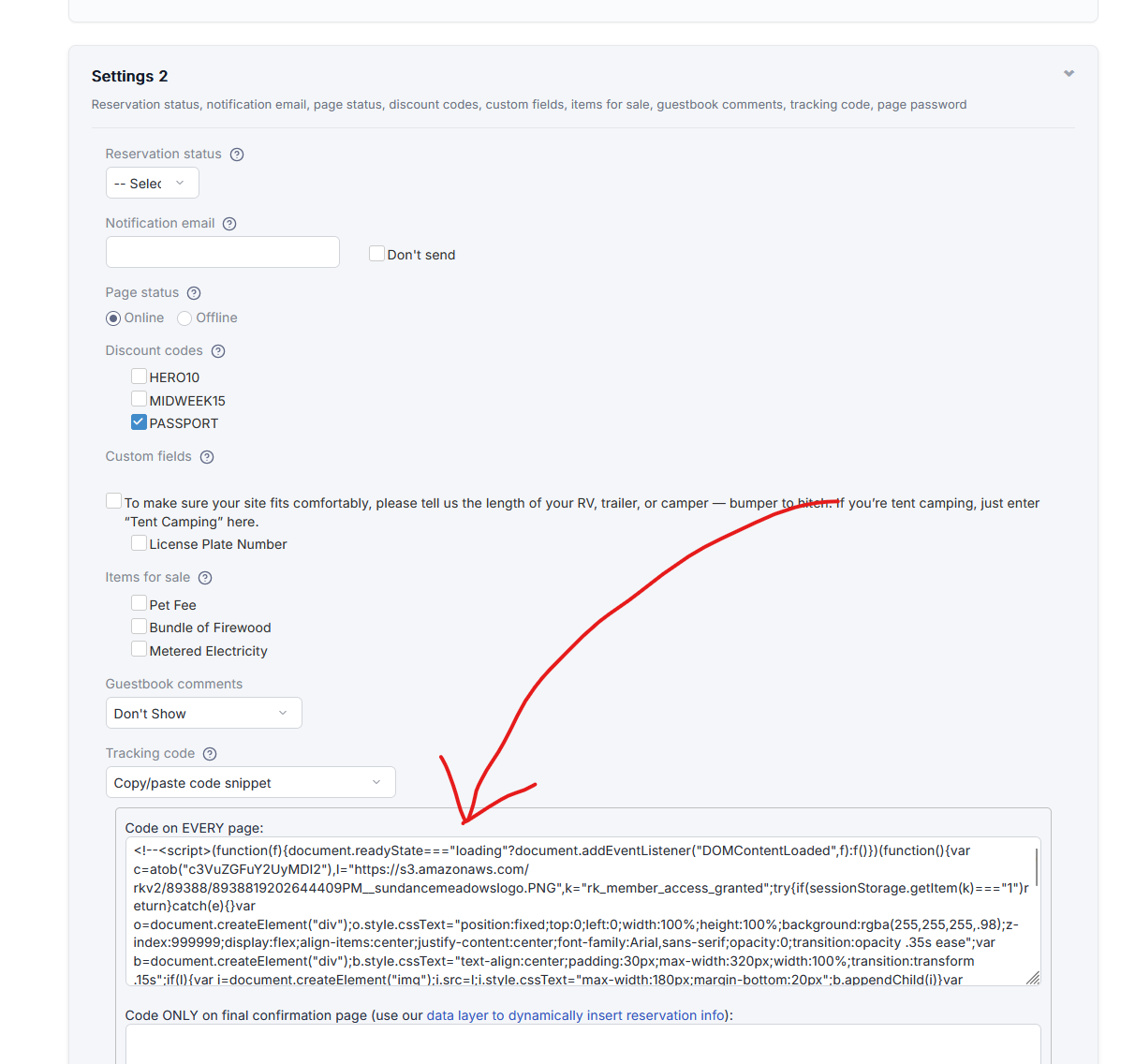
Inside ReservationKey:
- Go to Website → Reservation Pages
- Open the booking page you want to protect
- Paste a small JavaScript snippet into the custom code field
This script runs as soon as the page loads and creates the password overlay.
Sample Code Placeholder
If you want to add this to your page, here is sample code to get started with. Just change the logo URL and password as needed. Here the password is in plain text:
<script>(function(f){document.readyState==="loading"?document.addEventListener("DOMContentLoaded",f):f()})(function(){
  var PASSWORD = "sundance2026";   // <-- CHANGE PASSWORD HERE
  var STORAGE_KEY = "rk_member_access_granted";

  try{if(sessionStorage.getItem(STORAGE_KEY)==="1")return}catch(e){}
  var o=document.createElement("div");
  o.style.cssText="position:fixed;top:0;left:0;width:100%;height:100%;z-index:999999;display:flex;font-family:Arial,sans-serif";
  var l=document.createElement("div"),r=document.createElement("div");
  l.style.cssText=r.style.cssText="width:50%;height:100%;background:#e6f1fb;transition:transform 1.25s cubic-bezier(.77,0,.18,1)";
  o.appendChild(l);o.appendChild(r);
  var b=document.createElement("div");
  b.style.cssText="position:absolute;top:50%;left:50%;transform:translate(-50%,-50%);background:#fff;padding:34px;max-width:340px;width:100%;text-align:center;z-index:1;border-radius:8px";
  var img=document.createElement("img");
  img.src="https://s3.amazonaws.com/rkv2/89388/8938819202644409PM__sundancemeadowslogo.PNG";
  img.style.cssText="max-width:200px;margin-bottom:18px";
  b.appendChild(img);
  var t=document.createElement("div");
  t.innerText="Members Only Access";
  t.style.cssText="font-size:17px;margin-bottom:14px;color:#222";
  b.appendChild(t);
  var n=document.createElement("input");
  n.type="password";
  n.placeholder="Enter access code";
  n.style.cssText="width:100%;padding:12px;font-size:14px;box-sizing:border-box;border-radius:6px;border:1px solid #ccc";
  b.appendChild(n);
  var e=document.createElement("div");
  e.innerText="Invalid access code";
  e.style.cssText="color:#c0392b;font-size:13px;margin-top:10px;display:none";
  b.appendChild(e);
  var btn=document.createElement("button");
  btn.innerText="Continue";
  btn.style.cssText="margin-top:18px;padding:12px 26px;font-size:14px;font-weight:600;border-radius:999px;border:none;cursor:pointer;color:#fff;background:#2f6fb3;transition:background .15s ease";
  btn.onmouseenter=function(){btn.style.background="#245b99"};
  btn.onmouseleave=function(){btn.style.background="#2f6fb3"};
  b.appendChild(btn);
  o.appendChild(b);
  document.body.appendChild(o);
  function shake(){
    b.style.transform="translate(-50%,-50%) translateX(-6px)";
    setTimeout(function(){b.style.transform="translate(-50%,-50%) translateX(6px)"},80);
    setTimeout(function(){b.style.transform="translate(-50%,-50%)"},160);
  }
  function ok(){
    try{sessionStorage.setItem(STORAGE_KEY,"1")}catch(e){}
    l.style.transform="translateX(-100%)";
    r.style.transform="translateX(100%)";
    setTimeout(function(){o.remove()},1250);
  }
  function v(){
    n.value===PASSWORD ? ok() : (e.style.display="block",shake(),n.focus());
  }
  btn.onclick=v;
  n.onkeydown=function(e){if(e.key==="Enter")v()};
  n.focus();
});
</script>
The password can be:
- Lightly obfuscated (not plain text)
- Or left in plain text for easier future updates
Both options are simple to manage.
Optional Enhancements
Depending on your preference, the experience can be customized further:
- Fade-in or curtain-style reveal animations
- Custom colors to match your brand
- Multiple valid access codes
- Session-based access so members don’t need to re-enter the password repeatedly
- Calendar-based booking view instead of search-first
ReservationKey supports both search-based and calendar-based booking flows, and either can be used behind the password gate.
Final Thoughts
This members-only password approach is a practical, low-friction solution for organizations that want controlled access without added complexity.
It’s:
- Easy to implement
- Easy to explain to members
- Easy to maintain
- Flexible enough to adapt to different workflows
If you’d like a deeper demo, help implementing this on your own site, or want to explore additional customization options, feel free to reach out.
Thanks for reading, and thanks for using ReservationKey.