Design | January 16, 2026 | 4 min read
New Media Library for Image Management
The new Media Library makes it easy to upload, organize, reorder, and manage images across your entire ReservationKey account, with faster uploads and a better guest viewing experience.
Managing photos has always been one of the most important—and most time-consuming—parts of setting up your reservation pages. Today, we’re excited to introduce our brand-new Media Library, designed to make image management faster, more organized, and far more flexible across your entire account.
This update replaces the old, fragmented photo upload experience with a centralized, powerful image manager that works seamlessly with both modern and legacy themes.
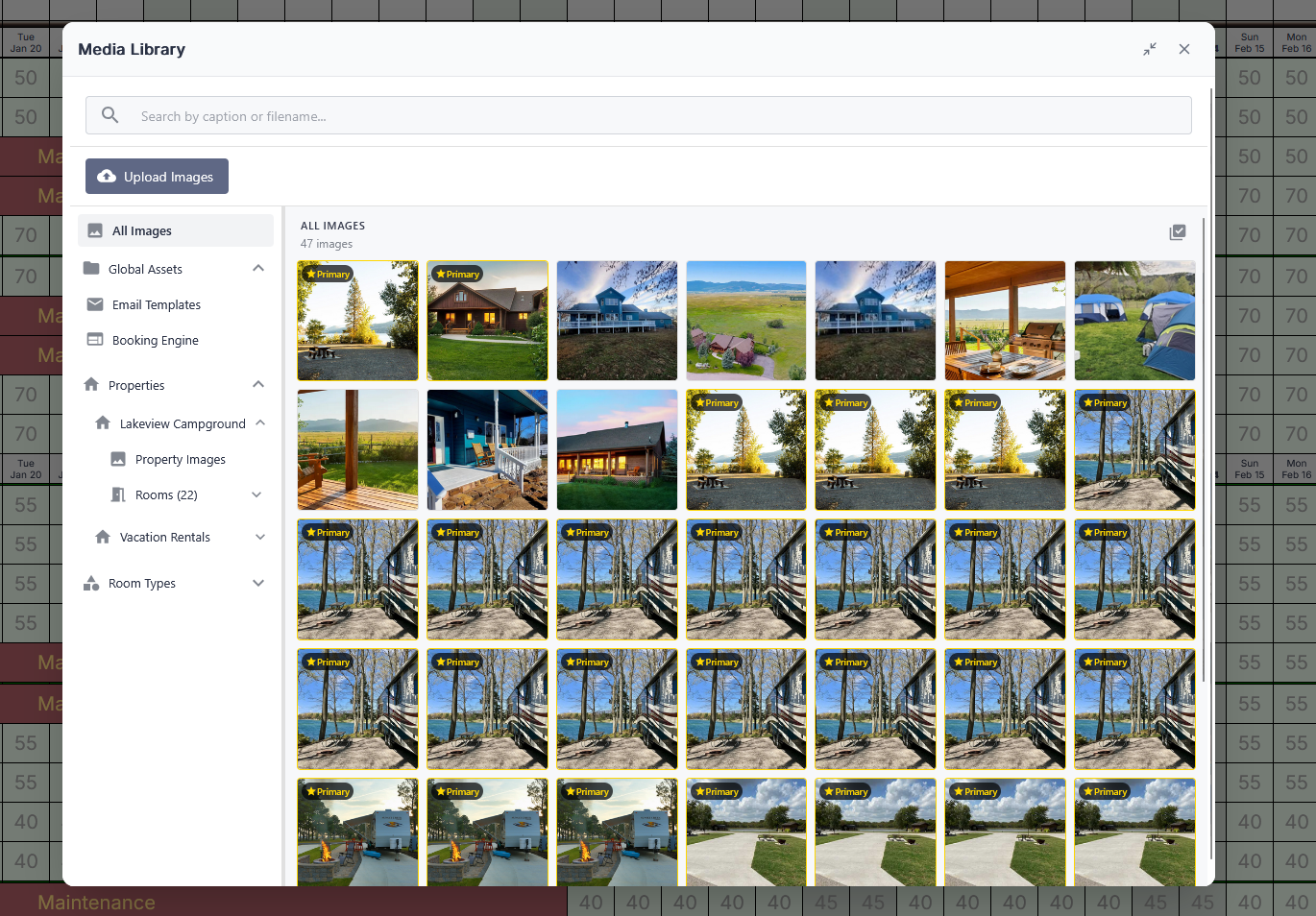
Accessing the Media Library
Getting started is simple:
- Open the hamburger menu in the upper-right corner
- Navigate to System → Media Library
This opens a new side drawer that displays every image in your account, all in one place.
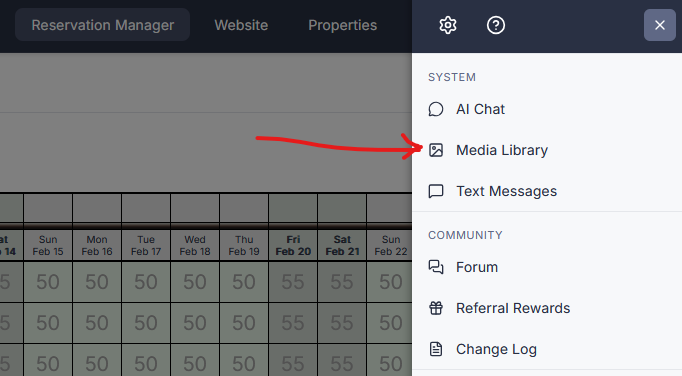
A Resizable, Flexible Workspace
At the top of the Media Library, you’ll find several controls that let you customize how you work:
- Pop the library out toward the center of the screen
- Drag the resize handle to adjust panel widths
- Click outside the drawer to snap it back to the side
- Use the expand/contract icon to fine-tune the drawer width
This makes it easy to work comfortably on large monitors, laptops, or smaller screens.
Powerful Search Across All Images
The search box lets you instantly locate images by file name or caption.
For example, searching for “lodge” will return every image across your entire account that contains “lodge” in either the filename or caption—no matter where it’s used.
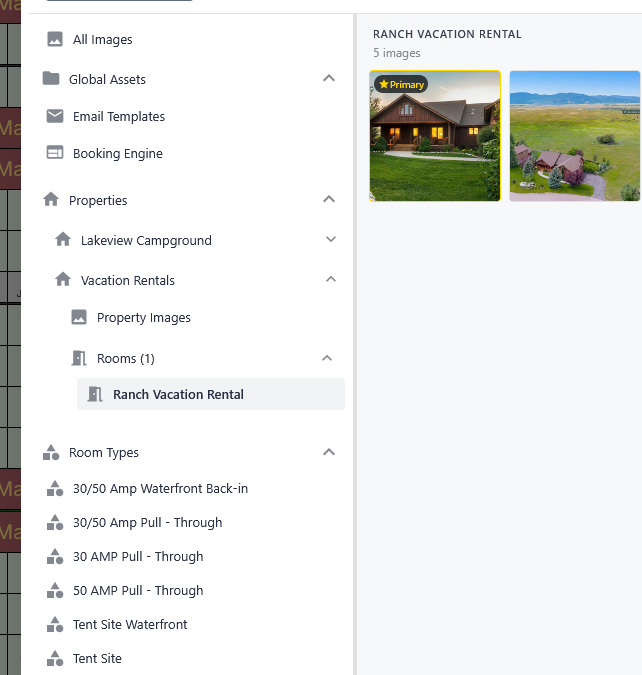
Organized by Global Assets and Properties
Images are now neatly grouped into logical sections:
Global Assets
Used for:
- Email templates
- Booking engine website messages
These images are available anywhere global content is displayed.
Properties and Units
Most image management happens here. You can drill down through:
- Properties
- Individual rooms, units, or sites
For hotel-style and campground users, unit-type images are also supported. Instead of uploading photos for every individual site, you can upload images once per unit type, saving significant time.
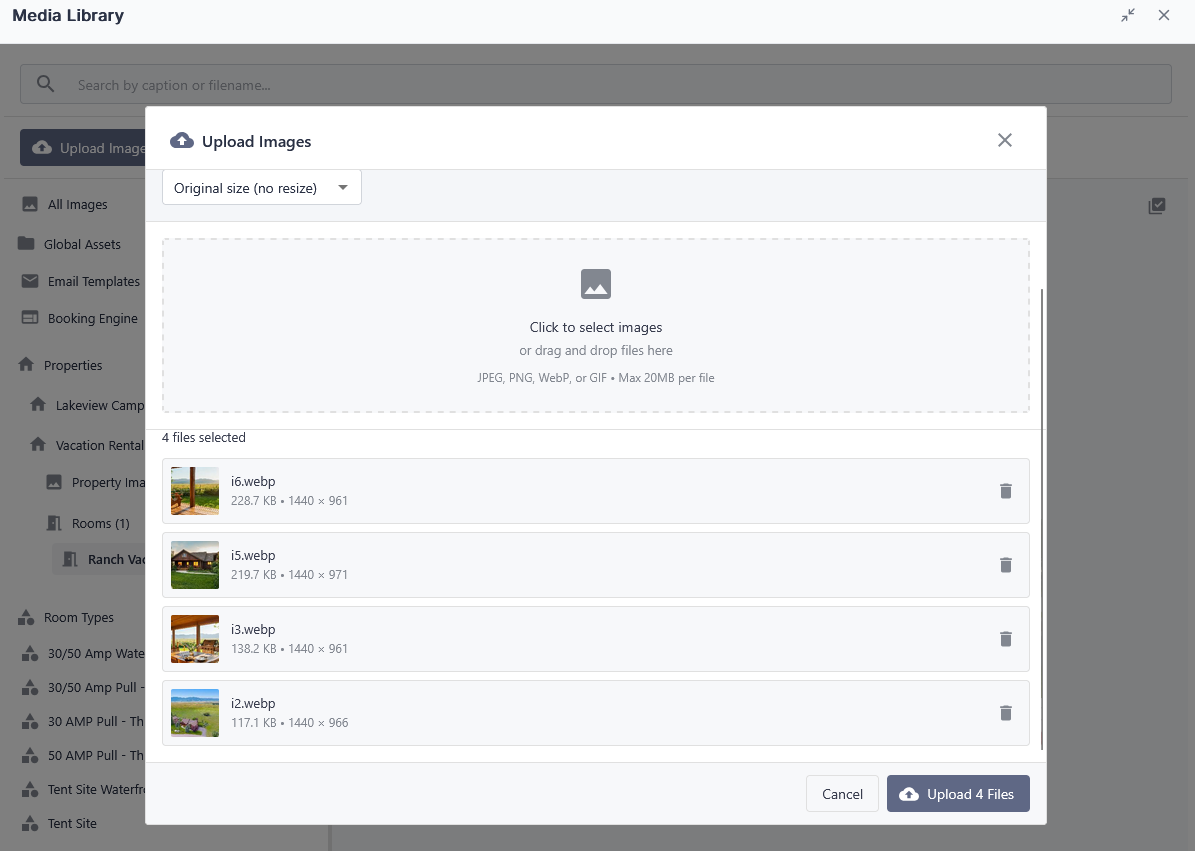
A Better Way to Upload Images
Uploading images is now faster and more flexible than ever:
- Drag and drop images directly onto the grid
- Upload up to 20 MB per image
- Automatic resizing optimizes files for performance
- No need to manually resize—your theme controls display size
Once uploaded, the first image is automatically set as the primary photo, which:
- Appears first in the slideshow
- Displays as the main thumbnail on the booking engine
Bulk Editing, Deleting, and Reordering
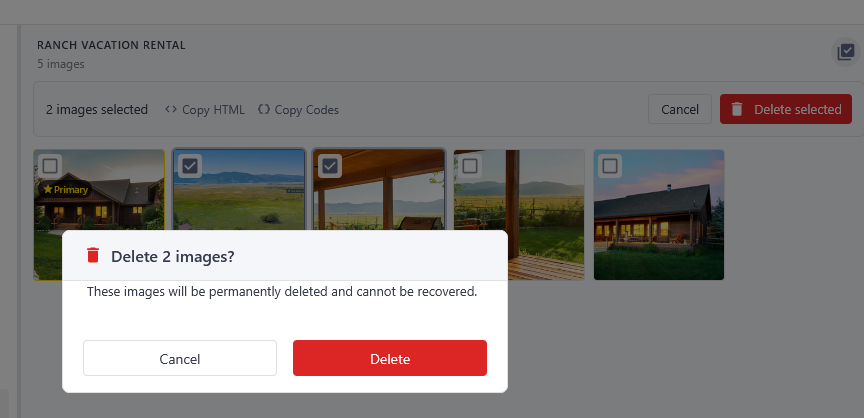
Bulk Select and Delete
Use the multi-image edit icon to:
- Select multiple images
- Delete duplicates quickly
- Confirm before permanent deletion
Note: Deletions cannot be undone, so be sure you have backups before removing images.
Reordering Images
Reordering is as simple as dragging thumbnails into place. On mobile devices, touch-and-drag works just as easily.
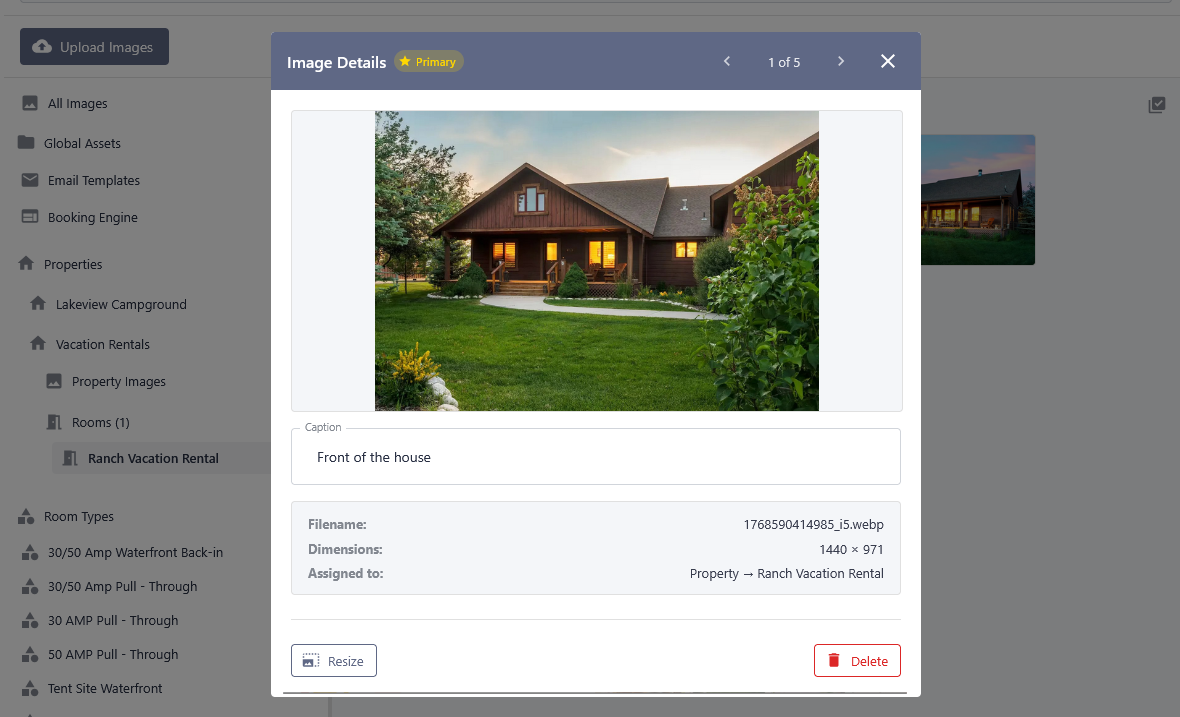
Captions and Keyboard Navigation
Clicking any image opens a quick-edit view where you can:
- Add or edit captions
- Navigate between images using keyboard controls
- Autosave captions as you move between images
Images without captions continue to display cleanly, while captioned images show helpful context on hover and in slideshows.
Copying Image Codes and HTML
The multi-image selector also allows you to:
- Copy legacy image codes
- Copy full HTML snippets
These can be pasted into:
- Additional Details popups
- Custom content areas
This preserves compatibility with older workflows while keeping everything centralized in the Media Library.
Live Preview Inside Unit Settings
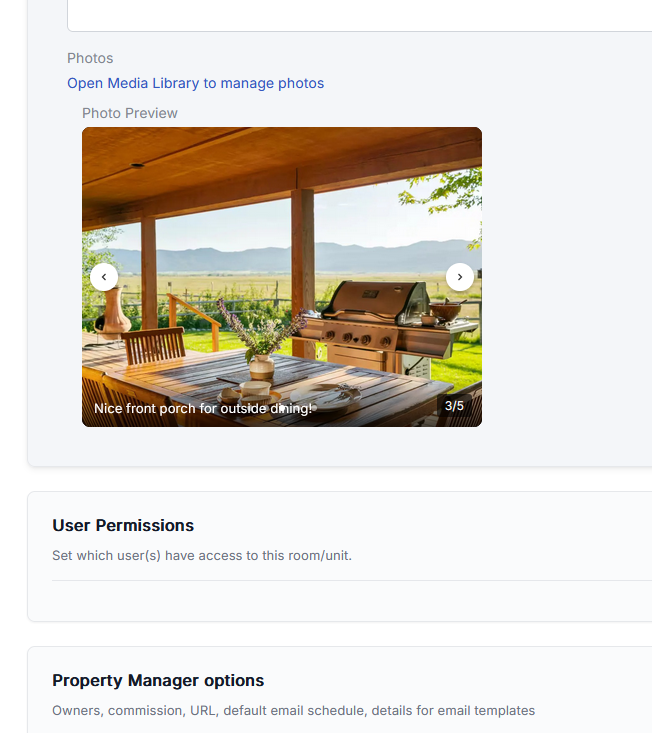
When you return to a unit’s Reservation Page Details, you’ll now see a live preview of the image gallery exactly as it will appear to guests.
The preview includes:
- Slideshow behavior
- Captions
- Navigation controls
- Breadcrumb indicators
What you see here is precisely what appears on your public booking pages.
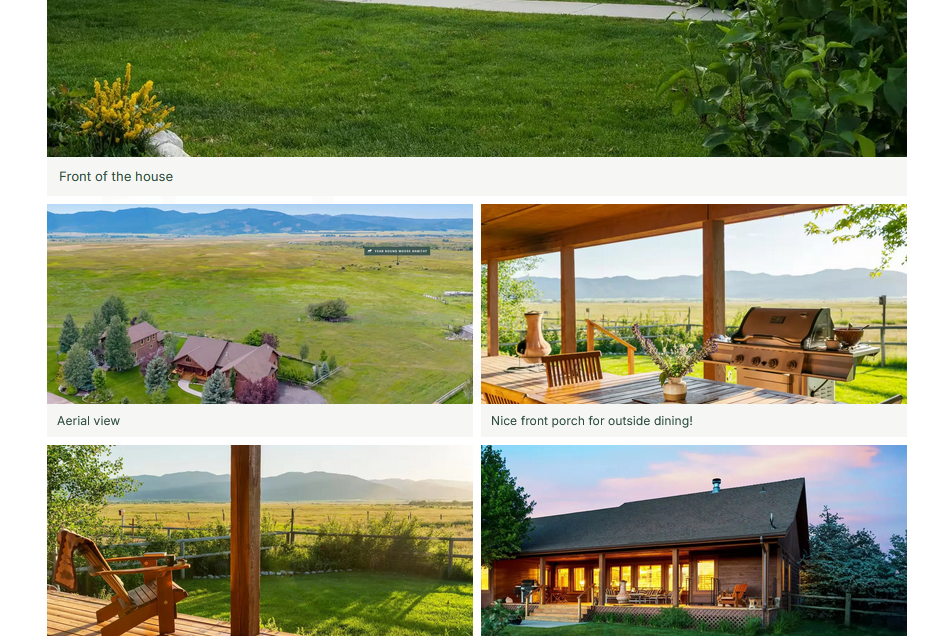
New “All Photos” Guest View
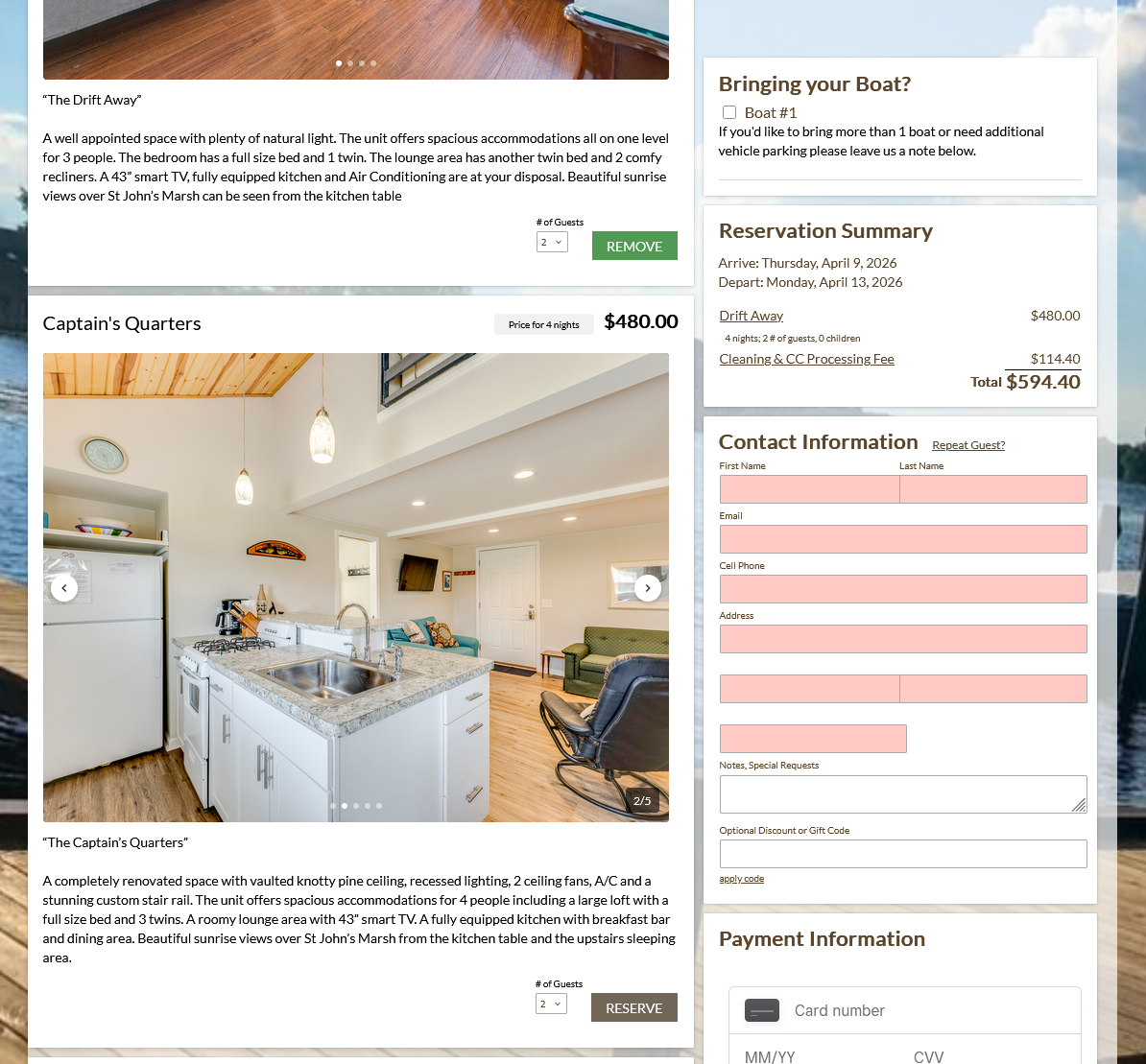
Clicking on an image from the booking page now opens a new All Photos view, allowing guests to:
- See every photo at once
- Click any image to jump directly into the slideshow
- Navigate back and forth easily using Escape or on-screen controls
A photo counter appears after the first image, clearly showing guests how many photos are available.
Works Beautifully Across All Themes
The new Media Library integrates cleanly with:
- Older legacy themes
- Custom themes
- The modern V3 white theme
Theme styles control image sizing, borders, and layout, while uploaded images remain high-resolution and consistent across devices—including mobile, where swipe gestures work naturally.
A Major Upgrade to Image Management
The new Media Library is a significant improvement over the old image upload system:
- Centralized image management
- Faster uploads
- Easier reordering and caption editing
- Better guest viewing experience
- Full compatibility with existing themes and workflows
We hope this makes managing your photos simpler, faster, and more enjoyable—and gives your guests a better visual experience when browsing and booking.
Thank you, and we hope you enjoy the new Media Library.