Announcements | October 4, 2026 | 5 min read
New in ReservationKey: HTML Email Templates, Click-to-Edit Emails, and Date-Based Text
Create guest emails from your own HTML or AI-generated designs, edit rendered emails in Correspondence, and add text that matches each reservation's dates.
You now have more ways to create and personalize guest emails in ReservationKey. Paste in an HTML design—including one created with AI—preview it, add merge fields, and make quick text changes before sending. You can also add text that appears only when a guest’s reservation falls within the dates you choose.
These features are now available in Email Templates and Correspondence.
Bring your own email design—including one created with AI
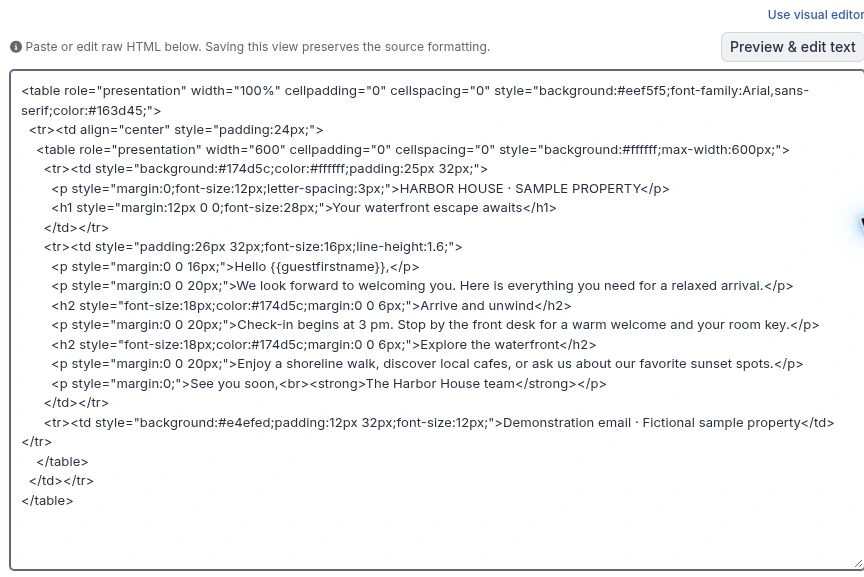
Want a more polished confirmation email, pre-arrival message, or welcome letter? You can now paste HTML directly into an email template using Edit as HTML.
This makes it easier to use a design you already have, work with a designer, or ask an AI tool to create a starting point. For example, you could ask:
Create an HTML pre-arrival email for a small waterfront resort. Use a simple, mobile-friendly layout with a welcome message, check-in information, and a section for things to do nearby. Use inline CSS suitable for email.
Once you have the HTML:
- Open an email template in ReservationKey.
- Choose Edit as HTML.
- Paste the HTML into the editor.
- Click Preview & edit text to see the design.
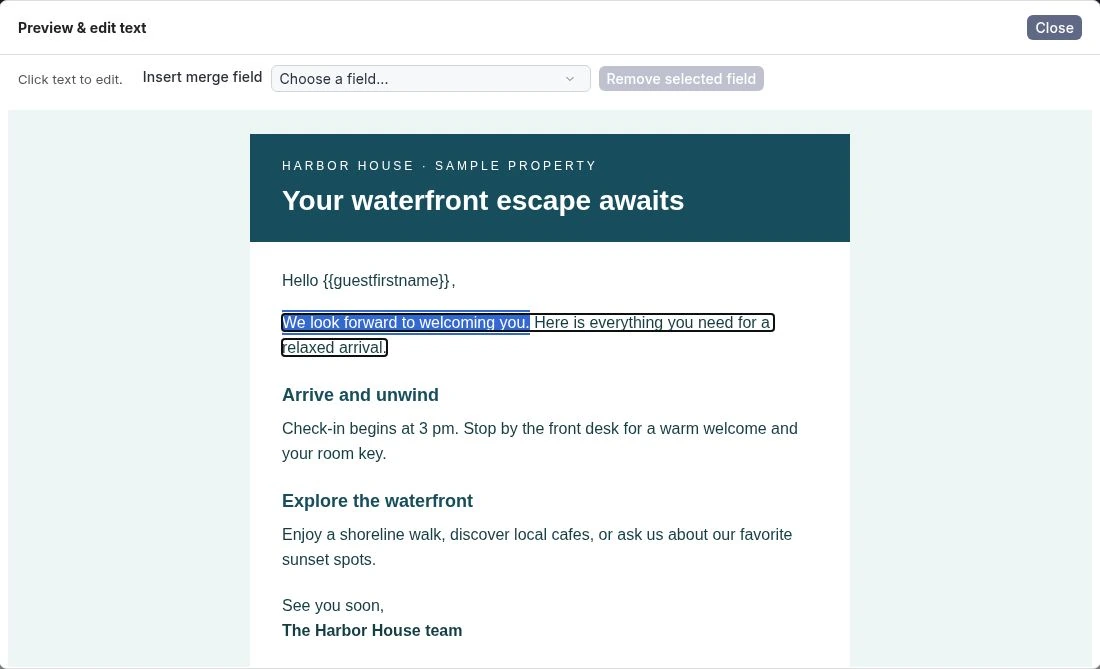
You can then refine the wording in the preview and add ReservationKey merge fields to personalize the message.
Preview your design and add merge fields
You don’t need to find the right spot in the HTML source every time you want to change a sentence or insert a guest’s name.
In Preview & edit text, click the text you want to change and edit it directly. To add a merge field, click where it should appear and choose a field from Insert merge field.
This lets you combine a custom design with the guest and reservation information already stored in ReservationKey. Create the layout first, then add the personalized details where they belong.
Close the preview and save the template when you’re finished. Before using a new design for guest communications, send yourself a test email to check how it looks in your inbox.
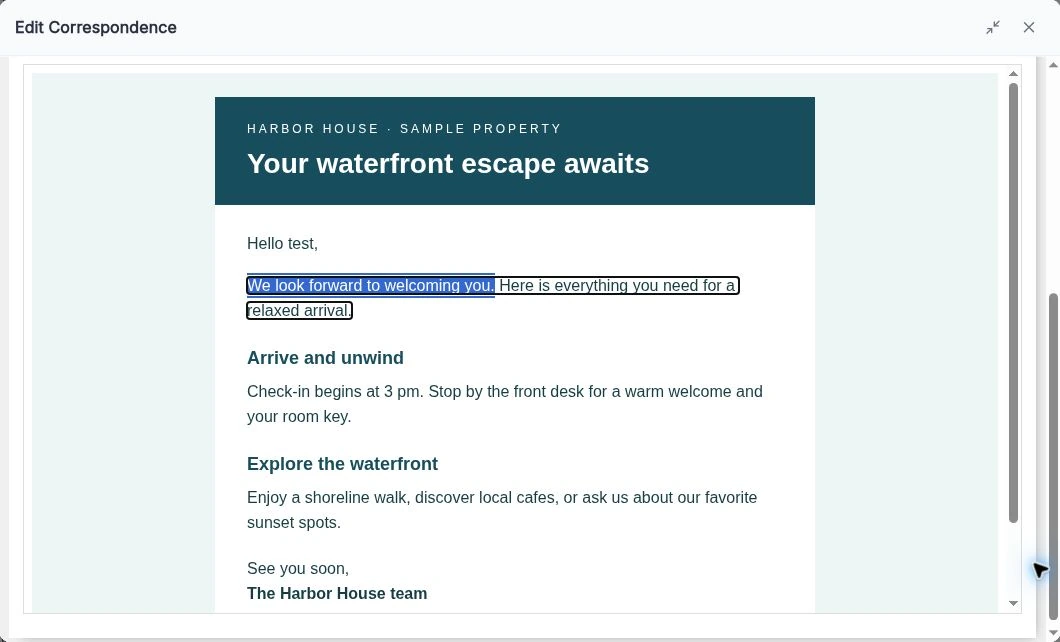
Make quick changes in Correspondence
When you select a template saved in HTML mode in Correspondence, ReservationKey displays the rendered email right away.
Need to add a personal welcome, clarify an arrival instruction, or adjust a sentence for a particular guest? Click the text and make the change directly in the displayed email.
You can see the design while you work, making it easier to review the message and personalize it before sending.
Include the right information for the guest’s dates
Some information belongs in every email. Other details only matter during a particular season, holiday, or event.
The new Additional Text section in Email Templates lets you create reusable blocks of text with date-based rules. For example, you could include:
- Holiday activities for guests staying over December.
- Seasonal arrival instructions for winter visits.
- Checkout information for guests departing during a special event.
Each block has a name, start and end dates, a matching rule, and its own formatted content.
Choose the rule that fits:
| Matching rule | When the text appears |
|---|---|
| Staying during these dates | At least one occupied night falls within the range. Checkout day is excluded. |
| Arriving during these dates | The arrival date falls within the range. |
| Departing during these dates | The departure date falls within the range. |
Start and end dates are inclusive. Dates include the year by default, or you can select Repeat every year for recurring information—including a range that runs from December into January.
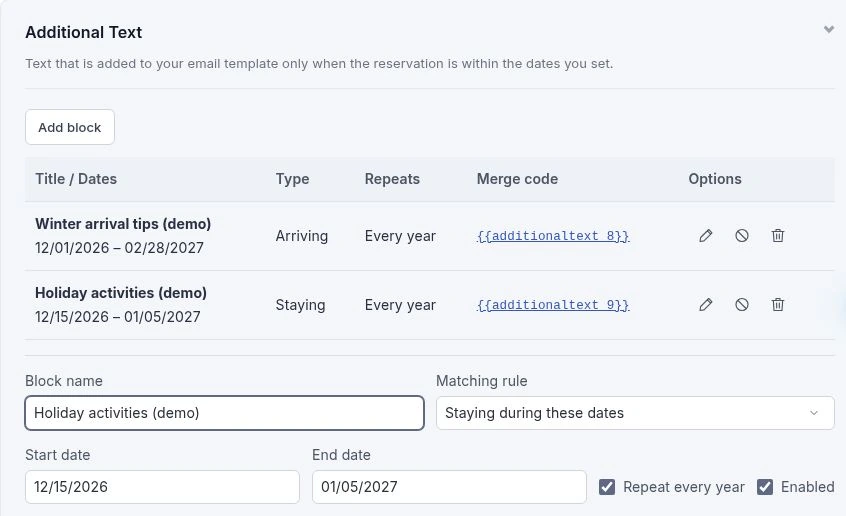
Put conditional text exactly where you want it
Saving a block creates its own merge code, such as {{additionaltext_123}}. Click the code in the block list to insert it into your main template, or choose the block from Insert Merge Field.
Place it wherever that information should appear—perhaps after your arrival instructions and before your sign-off.
You can put several block codes in the same area. ReservationKey checks each independently: matching blocks appear with paragraph spacing, while nonmatching or disabled blocks contribute no text. If multiple blocks match, each is included.
You can also use ordinary guest and reservation merge fields inside a block. Renaming a block won’t change its code, and you can disable it temporarily without deleting it.
In Correspondence, Replace now shows the matching content using the reservation’s current dates. Choose Replace upon sending when you want the date-based content evaluated at send time, including for a message scheduled to go out later.
Try it with your next guest email
Open an existing email template to try Edit as HTML or add a seasonal block under Additional Text. Then select the template in Correspondence to see how it looks for a guest.
Whether you’re refreshing your email design or making seasonal information easier to maintain, these updates give you more control over what guests receive—and make everyday edits quicker.