Operations | April 8, 2012 | 2 min read
More Ways to Find Reservations
Two new features make it easier than ever to find reservations. In header section, in the upper right, we now have a link for quickly pulling up new reservations, and on the upper left, a link for searching for reservations. Reviewing New Reservations As you enter reservations manually, or new online reservations come in, the …
Two new features make it easier than ever to find reservations. In header section, in the upper right, we now have a link for quickly pulling up new reservations, and on the upper left, a link for searching for reservations.
Reviewing New Reservations
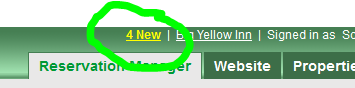
As you enter reservations manually, or new online reservations come in, the link will update to show how many new you have for the current day. If you have at least one new reservation, the link will show in bold yellow. If you don’t yet have any new reservations for the current day, the link will show “0 New” in white.
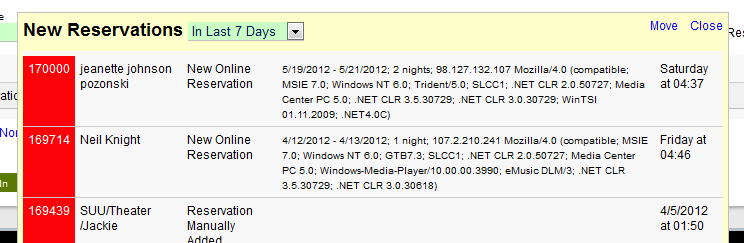
In the upper-right corner, the “New Reservations” link shows how many new reservations you’ve received today—highlighted in bold yellow if there’s at least one, or “0 New” in white if none. Clicking it brings up recent reservations: last 7 days, last 14 days, this month, or last month.
- Choose between the full reservation details or the clean Quick View pop-up for fast access.
Clicking on the link defaults to bring up your new reservations for the day, but you also can search for new reservations from the last 7 days, 14 days, this month, and last month. From the list of reservations you can either click to go to the full reservation information, or click the Quick View option.
See How It Work : Book A Demo
On the upper-left, a global search bar lets you search across:
- Reservation IDs, all guest name fields, contact details, reservation notes, or contact notes.
- The results open in a dynamic search box; you can refine your search or directly click to open a full reservation.
Searching Reservations
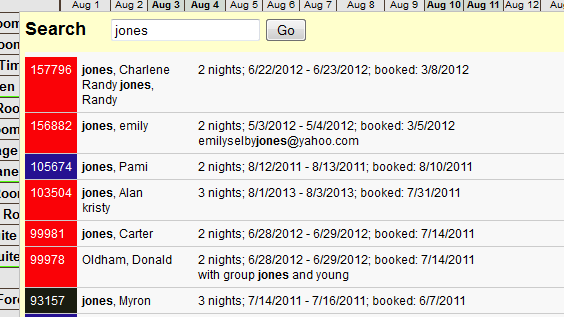
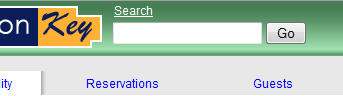
Clicking the Search link brings up a search box. In this one box, you can search by reservation ID, any of the guest name fields, any of the other contact fields, and also the reservation and contact notes.
The results of your search appear in a new box, where you can run another search, or click on a reservation to go to the full reservation details.