How do I add a new reservation?
Click available dates in the calendar to select dates. You can click as many available dates as needed. Dates can be non-consecutive and multiple rooms can be selected.
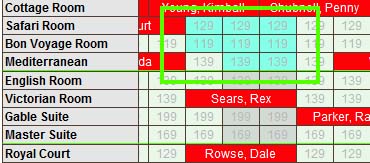
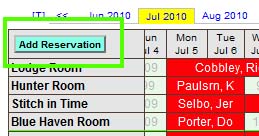
Once all dates are selected, click the "Add Reservation" button to add the reservation and continue to the guest details screen.
Back to top
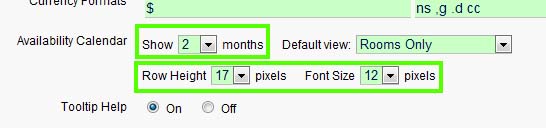
How do I change the months that are displayed? How do I change the size of the font and the rows?
You can find this in the Settings tab

under Preferences.
Back to top
How do I only show certain rooms?
Click the advanced Search link to show the advanced search.
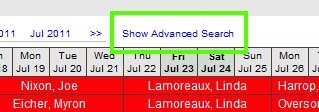
You can limit your view by Property, Room Type, and several other options.
Back to top
How do I change the view to different months, or year?
Click the month tabs at the top of the page, or click Forward or Back links to move one year at a time. You also can jump to different years quickly by using the year drop down selection under Advanced Search.
Back to top
Where do I change the reservation status colors and add additional status indicators?
The reservation status is changed in the Reservation Details screen, or in the Reservations List screen. Use the list screen view to change the status for multiple reservations at once.
You can add status indicators and set colors under the Settings Tab, Reservation Status
Back to top
Can I export my calendar data to external calendars?
We currently support export to Google Calendar via CSV files. You select a date range and properties (or all) to export. ReservationKey then generates a CSV file which is formatted for uploading to Google Calendar.
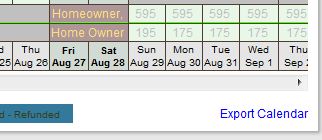
You will find the export link at the bottom right of the availability calendar.
Back to top
How do I view reservations where the status does not block my calendar (such as waitlist, inquiry, pending, cancelled)?
For dates where reservations exist but the calendar is not blocked, you will find a small link, which indicates the number of hidden reservations for a particular date, such as +1, +2, etc.
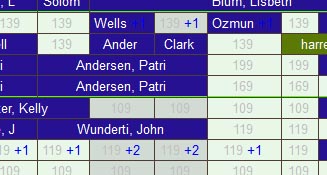
Click on the link to view a listing of the hidden reservations. From there click on a reservation to see the full details, or click QuickView.
This feature allows you to easily see waitlisted reservations, inquiries, and cancelled reservations. You may hide these links in Preferences by setting Show Hidden Reservations to No.
Back to top
